
Users and access keys
Everyone who uses the hub, from a phone, a browser, or a script, signs in as a user. A user has a username and an access key. The same pair signs the user in to the hub's web UI and API and to the MQTT broker, so one credential covers everything that person does.
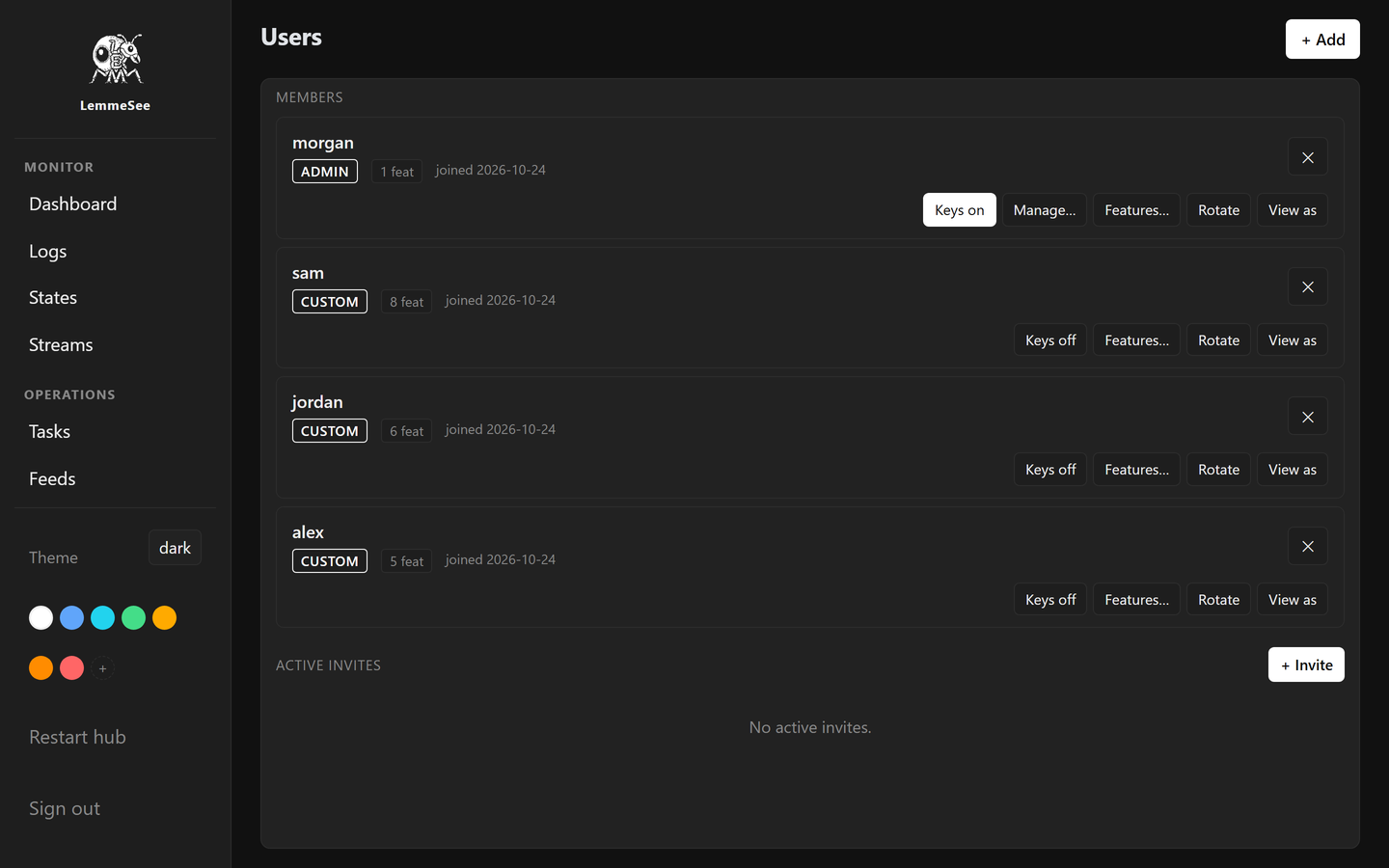
What a user can see and do is set by their permissions. See Permissions and grants.
The first user
A fresh hub has no users. The first admin is created with the one-time bootstrap key the hub prints when it starts. See First run. After that, create users from the Users page or send invites.
Adding a user
On the Users page, open the Active tab, click + Add user, enter a username, and pick a preset. A username can only contain letters, numbers, underscores, and hyphens.
The presets:
| Preset | Gives |
|---|---|
| Listener | Everything public, nothing private. A good start for someone who only receives notifications. |
| Read Only | Listener, plus private feeds and plugins, all states, and the Feeds, Streams, and States pages. |
| Developer | Read Only, plus private logs, pings, approvals, webhooks, and filters, the Logs, Tasks, Webhooks, and Filters pages (to view), every task, and creating plugin keys. |
| Admin | Everything. |
The hub then shows the new user's access key once, with a copy button. Copy it and pass it on securely: the hub keeps only a hash of it and can't show it again. If it's lost, rotate the key.
A preset is only a starting point. You can add or remove individual permissions afterwards with Features on the user's row.
The Active tab
The Users page has two tabs: Active lists the users, in alphabetical order, and Invites lists open invites (see Invites). Each tab shows how many it holds, and the Add button at the top adds to the tab you're on. On the Active tab, type in Filter by name to show only the users whose name contains it.
Each user's row shows a role label worked out from their permissions (Admin, Developer, or Read Only for the largest preset the user holds in full, Listener for a user with no permissions added, and Custom for anything else) and the date they joined. The buttons on the row:
| Button | Does |
|---|---|
| Keys | Opens the user's keys, in up to three parts. See below. |
| Features (n) | Opens the user's grants and revocations. The number is how many permissions they hold. |
| View as | Shows the hub as this user sees it, read only. See Permissions and grants. |
| Delete | Removes the user. You can't delete your own account. |
The Keys dialog has these parts:
- Access key: Rotate gives the user a new access key, shown once. The old key stops working on the API immediately and every browser signed in with it is signed out. Phones connected with it are disconnected within a few seconds, and the broker refuses it from then on. Users can rotate their own key through the API; see REST API.
- Relayed servers: creates and revokes the user's server keys, which let them add a relayed server in LemmeKnow as a server of its own, and sets which of each server's logs and states they see. Shown only when the hub has a relayed server task. See Relayed servers.
- Plugin keys: a switch that allows or stops this user creating plugin keys, and, while it's on, their plugin keys to create and revoke. See Plugin API keys.
Signing in
In a browser, the hub's sign-in page asks for the username and access key and keeps you signed in with a session cookie. In LemmeKnow, enter the same username and access key when you add the server, and the app opens the web UI for you already signed in. See Connecting phones.
Using an access key in scripts
Send both the key and the username with every request:
curl http://localhost:8765/api/users/me \
  -H "X-Access-Key: YOUR_ACCESS_KEY" -H "X-Username: alice"
A key sent with the wrong username, or without one, is refused, so a leaked key alone isn't enough to sign in. Plugin keys are the exception and need only the key. See REST API.
Requests that come from the hub machine itself and carry no key are treated as an admin while local_admin is on in config.json. That lets scripts on the same machine call the API without a key. See Configuration.
Keeping keys safe
Give each person, and each tool, its own user or plugin key, so you can rotate or delete one without disturbing the others. For a program that only needs one plugin's API, use a plugin key instead of a full access key. Failed sign-ins and refused requests are recorded in the hub's User Authentication feed, which says what was sent and how to fix it. See Troubleshooting.