
Connecting to a server
LemmeKnow can connect to a PC or similar device running supported software as a Premium feature. A server sends your phone log messages, pings and a regular heartbeat, so you can see at a glance whether your machines are healthy and even build rules around what they report.
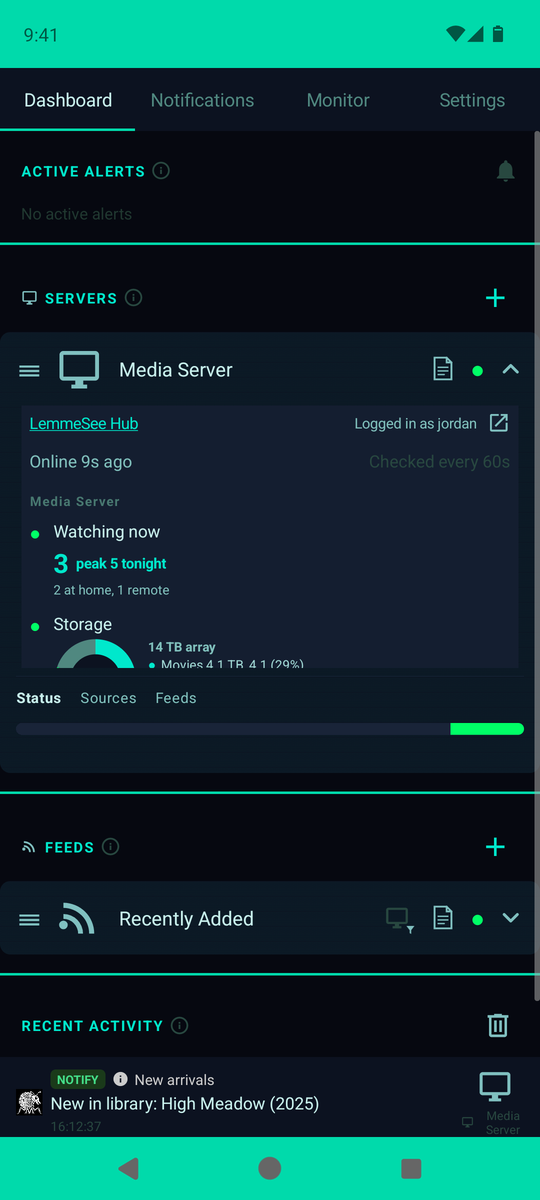
Supported servers contain the LemmeKnow Server (a lightweight logger and health indicator) or a machine running the full LemmeSee hub, which adds advanced feeds, video streams, approvals, states, custom pings, and plugins. Both types of servers are configured in the app the same way. To set up the server side, see the LemmeKnow Server documentation. For hub accounts, see Connecting to a LemmeSee hub.
Adding a server
On the Dashboard tab, tap + on the Servers header to open the Add Server screen. Fill in the required fields and tap Save & Connect. To edit a server later, long press its row on the Dashboard.
Server
| Field | Description |
|---|---|
| Display Name | Required. The name shown everywhere in the app, for example "Home" or "Build server". You can rename it at any time. |
| Server Icon | Optional. Choose Image picks a picture from your gallery, Remove clears it. |
| Address | Required. The broker address as host:port, for example 192.168.1.10:1883. If you leave off the port, 1883 is used. |
| Username | Your account name on the hub, which can only contain letters, numbers, underscores, and hyphens. Leave blank for an open server. |
| Access Key | The key for that account. Stored securely on the device. Hold the eye icon to reveal it. |
| Use TLS encryption | Encrypts the connection. Turned on and locked whenever an access key is set. |
| Hub URL | Read only. The hub's web address, received from the server once it connects. Only a server that runs a hub sets one. See Connecting to a LemmeSee hub. |
| Server short ID | Read only. A short identifier for this server on your phone. |
| Send crash reports to hub | Hub only. Sends LemmeKnow crash reports to this server's hub. See Crash reports. |
| Enable debug logs | Shows the 'print' command output of scripts that belong to this server in the Dashboard history. This works with "Script" condition notify rules and custom actions. |
Username and Access Key go together: if you fill in one, you must fill in the other. If you set an access key on a server that had TLS off, TLS is switched on when you save and a message displays, because access keys are never sent unencrypted by design.
Behavior
| Field | Description |
|---|---|
| Accept Requests | Hub only. What to do with approval requests from this hub. No ignores them, Yes accepts them, Text only accepts them without showing images. See Approvals. |
| Heartbeat Timeout (seconds) | How long since the last heartbeat before the server counts as offline. This is hidden when adding a server and the timeout is set automatically to twice the interval the server reports. After this it can be edited but it must be greater than the reported interval. Clearing it resets it to its default value. |
| Sustained RED Alert (minutes) | Minutes of continuous offline red status before the "Server offline (sustained)" ping fires. 0 turns it off. |
| Sustained YELLOW Alert (minutes) | Minutes of continuous degraded yellow status before the "Server degraded (sustained)" ping fires. 0 turns it off. |
Monitoring and images
| Field | Description |
|---|---|
| Auto-scroll to latest | Scrolls the Monitor tab to each message as it arrives. |
| Unread display | None, Monitor (a count on the Monitor tab and a divider where unread messages start), or Monitor + App (also a count on the app icon). |
| Show in monitor | Shows images attached to messages in the Monitor list. On by default. |
| Include in notifications | Adds attached images to notifications. Off by default. |
Trusting the server's certificate
With TLS on, LemmeKnow remembers the key the server presents the first time it connects and trusts only that key afterwards. Certificate renewals that keep the same key don't change anything.
If the server ever presents a different key, LemmeKnow refuses to connect. The server's status dot turns red and the Dashboard tab shows a warning badge. Open the server editor and tap Save & Connect. Upon doing so a Server key changed dialog shows the key you trusted before next to the one being presented. Check the presented key against your server before tapping Trust and reconnect.
Status dot
| Color | Meaning |
|---|---|
| Green | Heartbeat is arriving and nothing the server reports is in alarm. |
| Yellow | Heartbeat is fine, but at least one of the hub's states is in alarm, has gone away, or has stopped updating. Only a server that runs a hub can turn yellow. |
| Red | No heartbeat within the timeout, or nothing has been heard from the server yet. |
When the connection drops, LemmeKnow keeps retrying on its own, waiting a little longer each time up to five minutes, and reconnects right away when your Wi-Fi status changes.
Server pings
Status changes fire built-in pings that you can use in nudge and alert rules scoped to the server:
| Ping | When it fires |
|---|---|
| Server offline | The status turns red. |
| Server online | The status recovers from red. |
| Server offline (sustained) | The status has been red for the Sustained RED time. Fires once per outage. |
| Server degraded (sustained) | The status has been yellow for the Sustained YELLOW time. Fires once per episode. |
Scripts on a server can send pings of their own. LemmeKnow acts on them only when the code has a label defined on a LemmeSee hub; labelled pings show up by name in the rule editor's ping picker. A plain LemmeKnow Server cannot send custom pings that the app will acknowledge. See Pings.
On the Dashboard
Each server row shows its status dot, name and a monitor button that opens the server's messages on the Monitor tab, with an unread count when unread tracking is on. Tap the row to expand it:
- Status shows each host's last heartbeat, how often the server checks in, and an uptime tape of green, yellow and red history covering up to four weeks. On a hub it also shows the hub's states.
- Sources lists each message source with counts per level. Tap a source to open the Monitor filtered to it. For non-feed message sources, you can also delete messages from that specific source here.
- Feeds appears for hubs that publish feeds. See Feeds.
- Hub plugins can add tabs of their own, for example one for their states. See Plugins on your phone.
Drag the handle on the left to reorder servers.
Logs on your phone
Messages from servers are kept on your phone. Under Server logs in Settings you can set how many messages to keep per server and how many days to keep them. Clear Server Logs in the server editor wipes this server's messages, its acknowledged alerts, its cached feed items and its history lines without disconnecting. Active alerts stay.
Deleting a server
Delete Server removes the server and everything cached about it from your phone. The server itself is untouched. Nudge rules scoped to the server are deleted, and other rules scoped to it are marked invalid; the dialog tells you how many of each before you confirm.
Access keys and backups
Access keys stay on the device that stored them and are left out of Android's cloud backup. To move them to another phone, export your configuration with a passphrase. See Secrets Manager.