
Quiet rules
A quiet rule is a named set of conditions, such as "Sleep hours" or "At the office". While its conditions are true, the quiet rule is active and pauses the rules and folders it's assigned to. One quiet rule can be assigned to as many rules and folders as you like, so you define "Sleep hours" once and reuse it everywhere.
Creating a quiet rule
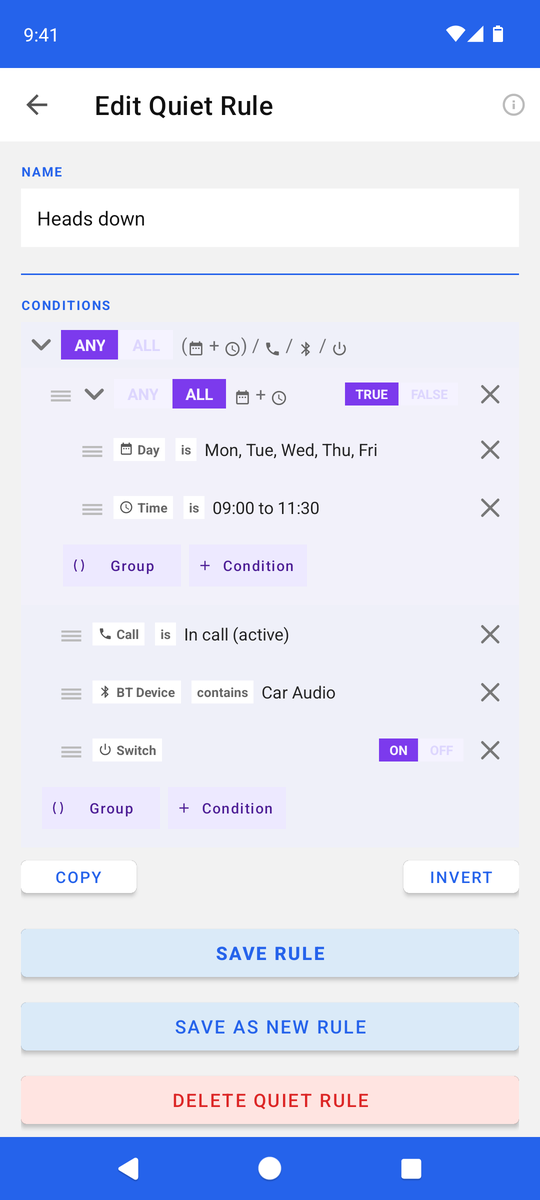
On the Notifications tab, tap + in the Quiet rules section. The editor has:
- Name: required, and unique among your quiet rules. If another quiet rule has the same name you'll see A quiet rule named "…" already exists.
- Conditions: at least one condition. Tap Condition to pick one, or + Add group to nest a group. See Conditions for every condition type.
- Copy, Paste, and Invert below the condition tree.
Example: a quiet rule named Sleep hours with All of Time is 22:00 to 07:00 and Charging. The rule is active (and its assigned rules paused) overnight, but only while the phone is on its charger.
Assigning a quiet rule
Open any rule or folder and tick the quiet rule in its Auto-disable during (quiet rule) list. The list shows your quiet rules with their folders. You can assign several quiet rules; the rule is paused while any one of them is active.
Quiet rules assigned to a folder apply to everything in it, including sub-folders.
What an active quiet rule does
It depends on the type of rule.
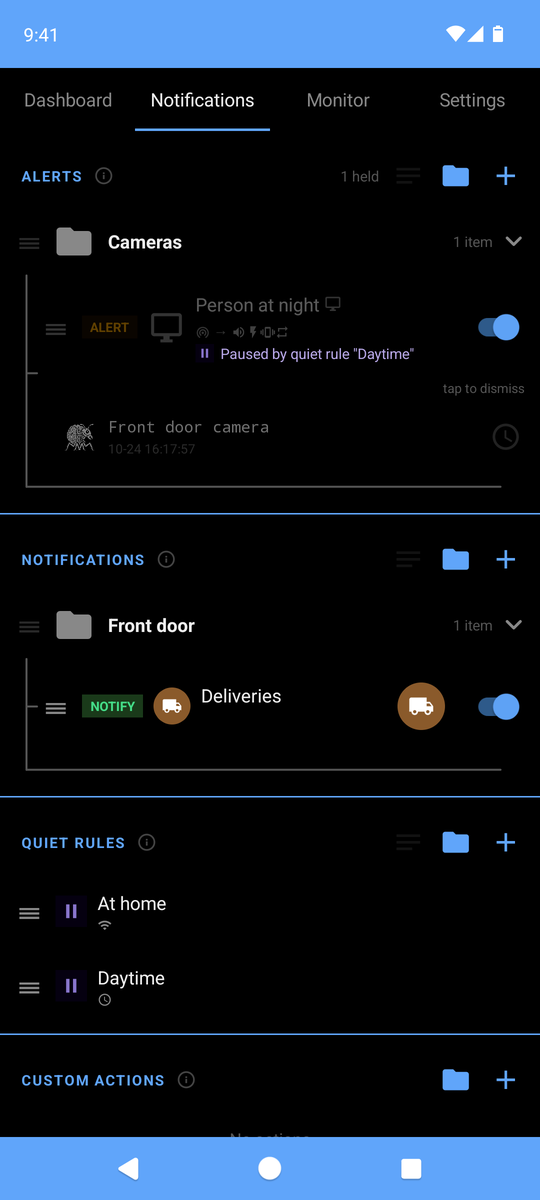
Notify, Silence, and Nudge rules are skipped entirely while the quiet rule is active, as if they were switched off. They don't catch up afterwards. On the Notifications tab, a paused rule is dimmed and shows Paused by quiet rule with its name.
Alert rules don't lose anything. An alert that fires during quiet time is held, with a clock icon, and rings once all its quiet rules are inactive. You can dismiss a held alert before it rings.
The exception is a quiet rule that contains a Cooldown or an Alerts count condition. These act as throttles: while one is active, a matching alert is skipped rather than held. For example, assigning a quiet rule with a 30 minute Cooldown condition to an Alert rule stops an alert from ringing more than once every 30 minutes.
Quiet rules never silence an alert that's already ringing.
Waking up
A rule in Wake Up mode does the opposite: it fires once when all its assigned quiet rules go from active to inactive, with the message Waking up from and the quiet rule's name. A good use-case is for a morning LemmeSee hub state nudge when "Sleep hours" ends. See Notification rules.
Since quiet rules and trigger conditions share the same builder, Invert is a quick way to turn "when I'm asleep" into "when I'm awake" for a Trigger rule. The Copy and Paste buttons under their builders share a clipboard for easy reusability.
Manual quiet rules with Switch
Add a Switch condition to build a quiet rule you turn on and off by hand, such as Vacation or Do not disturb me. Flip it from the switch on the quiet rule's row on the Notifications tab, from the Switch Board widget on your home screen, or with the Set Switch custom action. See Widgets.
Location and Wi-Fi
Quiet rules with WiFi or Location conditions need location permission, including "Allow all the time" for checks while the app is closed. If it's missing when you save, LemmeKnow warns you with Background location not granted, and you can still choose Save Anyway. See Permissions.
Deleting a quiet rule
Open it and tap Delete quiet rule. A quiet rule that's assigned to any rule or folder can't be deleted; you'll see This quiet rule is in use. Unassign it first.
Tips
- Keep quiet rules small and specific, then combine them by assigning several to a rule.
- Use folders to apply the same quiet rules to a whole group of rules at once.
- Tap the notes icon in the section header to see each quiet rule's conditions in more detail.