
Alerts
An alert is for things you can't miss. When an Alert rule matches, LemmeKnow plays its sequence of steps (vibrations, sounds, speech, flashes) and repeats it until you acknowledge the alert. Alerts can also ring on your wearable.
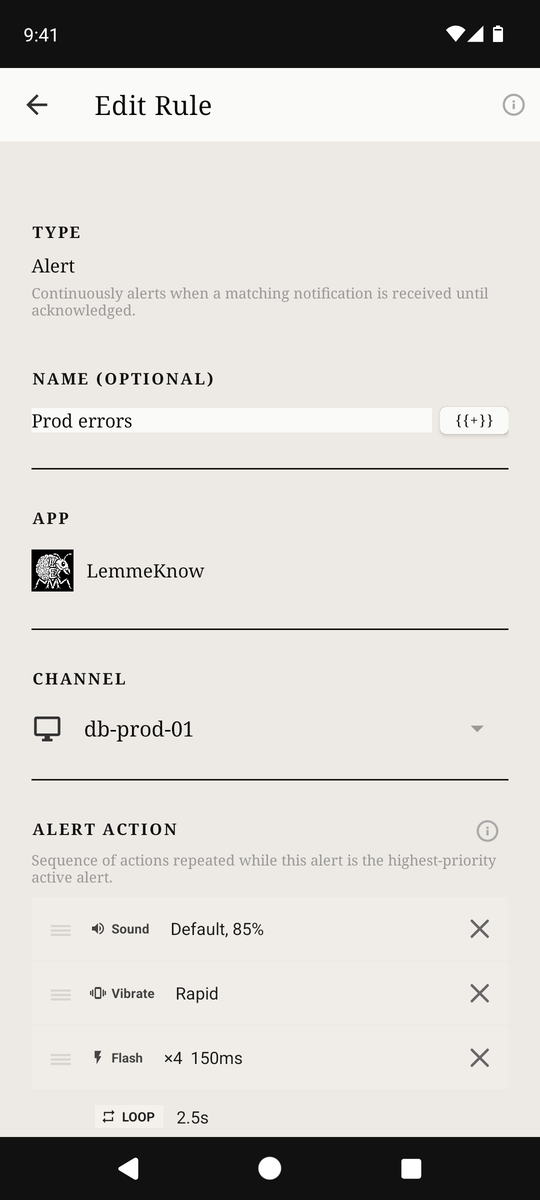
What sets off an alert
Alert rules can respond to anything: notifications from other apps (including Any App), LemmeKnow's own server messages and feed items, pings, self-nudges, and device conditions in the Trigger, Toggle and Wake Up modes. See Notification rules and Filter expressions.
While an alert is active
- The sequence plays, waits for the loop delay, then plays again.
- An ongoing notification shows how many items need acknowledgment, for example 2 items need acknowledgment, with Tap to review in LemmeKnow. It can't be swiped away. Its Dismiss button acknowledges the oldest alert and Dismiss All acknowledges every one.
- The alert appears under Active Alerts on the Dashboard, with an animated bell.
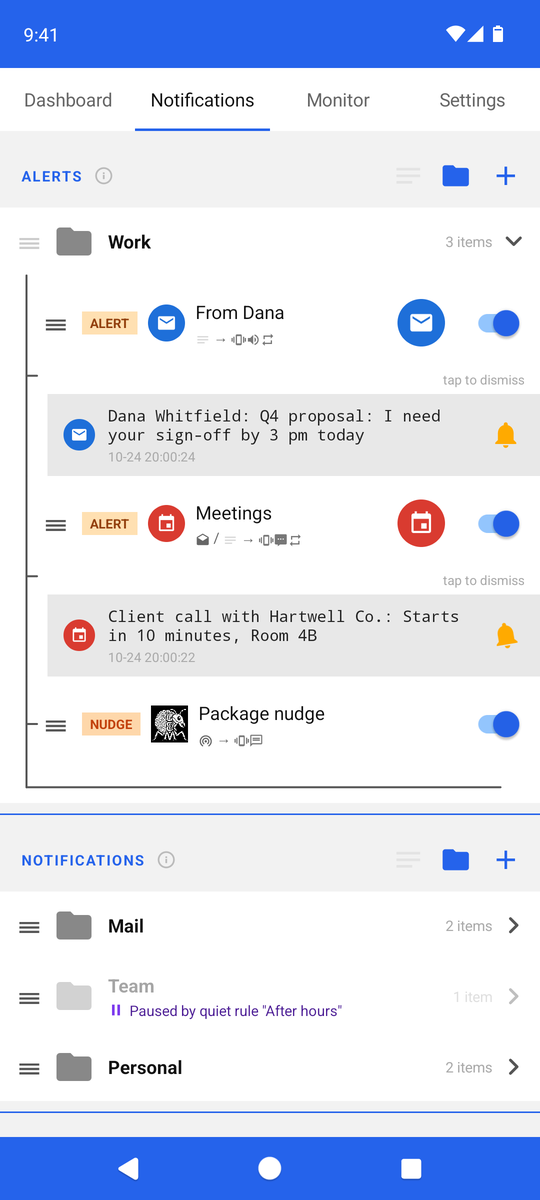
- On the Notifications tab, the rule shows each unacknowledged occurrence beneath it. Tap an occurrence's bell to acknowledge it.
Acknowledging from the notification, the app, or your wearable all have the same effect. Acknowledged alerts move to Recent Activity on the Dashboard.
Several alerts at once
If more than one Alert rule has unacknowledged alerts, the one highest in the Alerts list rings and its sequence loops. Reorder rules to set this priority. When it's acknowledged, the next one takes over. Custom action steps from every pending alert still run once each. However two alerts that would fire from the same event will only start the first alert which will not run the second's custom actions either. Similarly if an alert rule already has an active alert, if it were to trigger again, it will not run the custom actions again in this state.
Alert settings
Besides the app, channel, and filters every rule has, an Alert rule has these settings.
Alert action: The sequence of steps. See the step reference below.
Delay between loops: How long to wait after each full pass before starting again, from 0 to 30 seconds. The default is 3 seconds.
Restore volume on end: Appears when the sequence has a Volume step. When on, volume streams changed by the sequence go back to where they were when the alert ends.
Mute:
| Option | Effect |
|---|---|
| None | The sequence plays on the phone and the alert goes to your wearable |
| Device | Nothing plays on the phone and there's no ongoing notification; custom action steps still run. Alerts cannot execute on just a wearable |
| Wearable | The alert isn't sent to your wearable and fires on the phone normally |
Auto-dismiss after: A number of seconds after which the alert dismisses itself, with 0 = never. Its Mode chooses what's dismissed:
| Mode | Effect |
|---|---|
| Full | The alert is acknowledged on the phone, as if you'd dismissed it, and clears from the wearable |
| Wearable | Only the wearable's alert view closes; the alert stays pending on the phone |
Auto-acknowledge from notification: For alerts on another app's notifications:
| Option | Effect |
|---|---|
| Off | LemmeKnow's alert stays until you acknowledge it |
| Tap | Acknowledges when you tap the source app's notification |
| Tap or dismiss | Acknowledges when you tap or dismiss the source app's notification |
Rule image and Use app icon: Pick an image, or use the app's icon, for the alert. It also appears on your wearable.
Step reference
Tap a step button under the step list to add it. Tap a step to change it, drag its handle to reorder, and tap ✕ to remove it. Most step dialogs have a Test button.
| Step | Settings | What it does |
|---|---|---|
| Vibrate | Pattern: Pulse, Double Tap, Heartbeat, Rapid, Escalate, or Long Rumble. Duration 100 to 3000 ms (Pulse only). Intensity: Device default, Light, Medium, Strong, Max (on phones that support it). | Vibrates the phone |
| Delay | 100 to 10,000 ms | Waits before the next step |
| Flash | Duration 50 to 2000 ms, count 1 to 10 | Flashes the camera light. Unavailable while Flash safety is on in Settings. |
| Sound | Sound (Change…), stream (Default, Media, Ringer, Notification, Alarm), volume 0 to 100% | Plays a sound. The Media and Alarm streams can be heard through Do Not Disturb. |
| Toast | Text, optional | Shows a short pop-up message. Blank shows Alert received. |
| Wake | None | Turns the screen on briefly |
| Morse | Output (Vibrate, Sound, Vibrate + Sound), Text, Speed (Slow, Medium, Fast), Intensity | Plays text as Morse code. Blank text uses the alert message. |
| Speak | Text, Volume, Stream, Voice | Reads text aloud with text-to-speech. Blank text uses the alert message. |
| Volume | Stream (Media, Ringer, Notification, Alarm), Level 0 to 100% | Sets a stream's volume for the steps that follow |
| Delivery | Screen, theme, and more | Shows a full-screen Delivery Screen over the lock screen (Premium). See Delivery Screens. |
| Custom action | A saved action, or an inline one | Runs a webhook, system action or script (Premium). See Custom actions. |
Toast and Speak text can include tokens.
Custom action steps run only once per alert, even though the rest of the sequence repeats. With Auto-dismiss on success on (the default), a successful action acknowledges the alert for you. Use it for "fix it automatically, and stop ringing if that worked".
Copy and Paste below the step list copy a sequence to another Alert or Nudge rule. Test plays the sequence once without saving.
Quiet rules and alerts
If a quiet rule assigned to the alert, or to one of its folders, is active when the alert would fire, the alert is held instead of ringing. Held alerts show a clock icon, are counted in the section header as held, and start ringing once the quiet rules end. You can dismiss a held alert before it rings.
Two kinds of quiet rule skip the alert instead of holding it: quiet rules with a Cooldown or an Alerts count condition. Use them to stop an alert from repeating too often. A folder whose filters aren't met also skips the alert.
Once an alert is ringing, quiet rules never silence it. See Quiet rules.
Deleting an Alert rule
A rule with unacknowledged alerts can't be deleted. Dismiss them first, or you'll see Dismiss all alerts before deleting this rule.