
Notification rules
Rules decide what happens when something arrives: a notification from another app, a message, or ping from a server, or an item from a feed. Each rule has a type, a source it listens to, and optional filters that narrow down what it matches.
Rule types
| Type | What it does |
|---|---|
| Notify | Lets a notification through, or posts one for LemmeKnow's own messages and feeds |
| Silence | Stops a notification from appearing, and removes other apps' notifications from the shade |
| Nudge | Plays a short sequence of steps once, on the phone and wearable, with no notification to clear |
| Alert | Repeats a sequence of steps until you acknowledge it |
Each type has its own page: Notify and Silence, Nudges and Alerts.
Creating a rule
On the Notifications tab, tap + on the Alerts section for an Alert or Nudge rule, or on the Notifications section for a Notify or Silence rule. The editor opens with these parts, top to bottom.
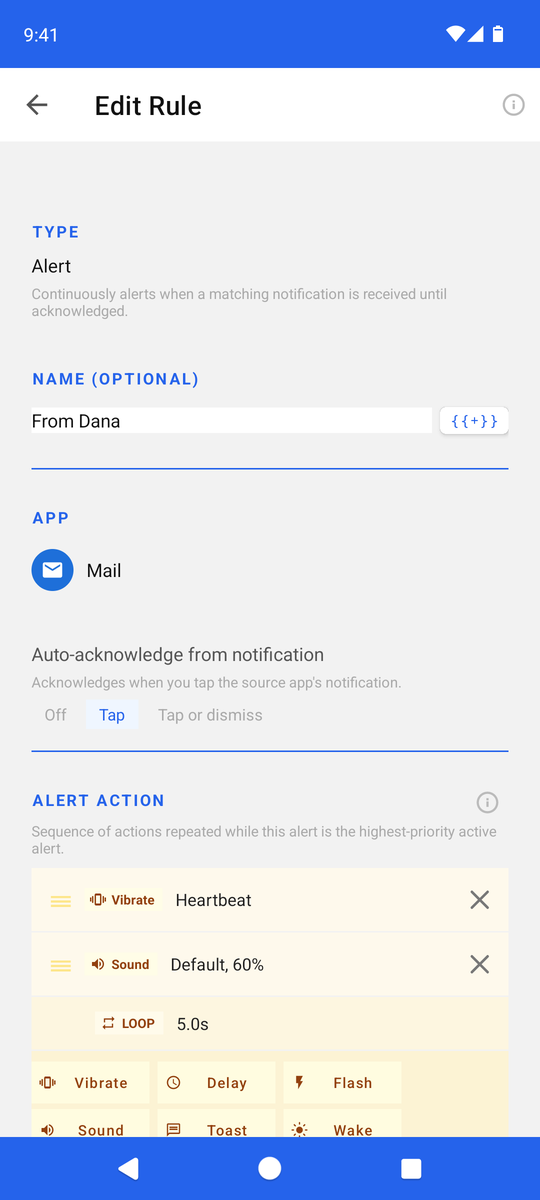
Type: Choose Notify, Silence, Alert, or Nudge. Once a rule is saved its type can't be changed.
Name (optional): A display name for the rule. It can include tokens, which are filled in each time the name is shown.
App: Tap Browse to pick the app whose notifications the rule listens to. LemmeKnow is always at the top of the list, for its own messages, feeds, and pings. Any App matches every app. Nudge rules always listen to LemmeKnow.
Channel: For LemmeKnow rules, a channel selector narrows the rule to a source:
| Channel | Matches |
|---|---|
| Any Channel | Everything LemmeKnow receives (not offered for Nudge rules) |
| Any Server | Messages and pings from any server |
| Any Feed | Items and pings from any feed |
| A server or feed by name | Only that server or feed |
The channel decides which filter fields are available. If a rule's server or feed is deleted, the editor shows a warning under the selector.
Mode: A row of buttons picks how the rule fires. See Rule modes below.
Filters: Conditions on the incoming message, built from fields such as Message, Source and level. See Filter expressions.
Actions: Alert and Nudge rules have a sequence of steps such as vibrate, sound or speech. See Alerts.
Auto-disable during (quiet rule): Tick quiet rules that pause this rule while they're active. See Quiet rules.
At the bottom, Save Rule saves your changes. When editing an existing rule you also get Save as new rule (saves a copy), Delete rule, and Send Test Notification or Send Test Nudge to try the whole rule.
Rule modes
| Mode | Rule types | Fires when |
|---|---|---|
| Filters | All | A matching message, notification, item, or ping arrives. This is the default. |
| Self-Nudge | Alert, Nudge | A Notify rule set to Nudge mode matches something. See Nudges. |
| Trigger | Notify, Alert, Nudge | A set of device conditions changes from false to true |
| Toggle | Notify, Alert, Nudge | A set of device conditions changes either way |
| Wake Up | Notify, Alert, Nudge | All the rule's assigned quiet rules go from active to inactive |
| Script | Notify | A JavaScript filter you write returns true (Premium) |
Silence rules always use Filters.
Trigger and Toggle replace the filter builder with a condition tree, the same kind quiet rules use (without the Switch condition). The first check after the service starts only records the current state, so a rule never fires just because the app started. To fire when conditions stop being true, build the condition and tap Invert.
Wake Up needs at least one quiet rule assigned. It fires once when every assigned quiet rule has gone inactive, with the message Waking up from and the quiet rule's name. It's handy for "tell me when quiet hours end".
Trigger, Toggle, and Wake Up always run as LemmeKnow rules, so the app selector is hidden.
Script replaces the filter builder with a JavaScript editor. The incoming item is available as item. Set result to true when the rule should match:
result = item.level == "error" && item.source == "backup";The Test button runs the script against a sample item and shows match: true or match: false. This is primarily useful for checking that your script is syntactically correct.
How rules are evaluated
Rules are checked in list order. Folders and rules mix in that order, and each folder's contents are checked in place. Disabled rules, rules paused by a quiet rule, and rules in a paused folder are skipped.
For Notify and Silence, every matching rule counts toward the decision. For Alerts, the topmost matching Alert rule is the one whose steps play. Order matters most in the Alerts section: the first active alert decides which sequence loops.
Getting started
LemmeKnow comes with one Notify rule for its own messages, which notifies you about anything at Warning, Important or Error level. Edit it, or use it as a model for your own rules.
Rules in a folder also inherit that folder's filters and quiet rules.