
Folders
Folders group items in the lists on the Notifications tab. Beyond keeping things tidy, a folder can apply filters and quiet rules to everything inside it, so you set them once instead of on every rule.
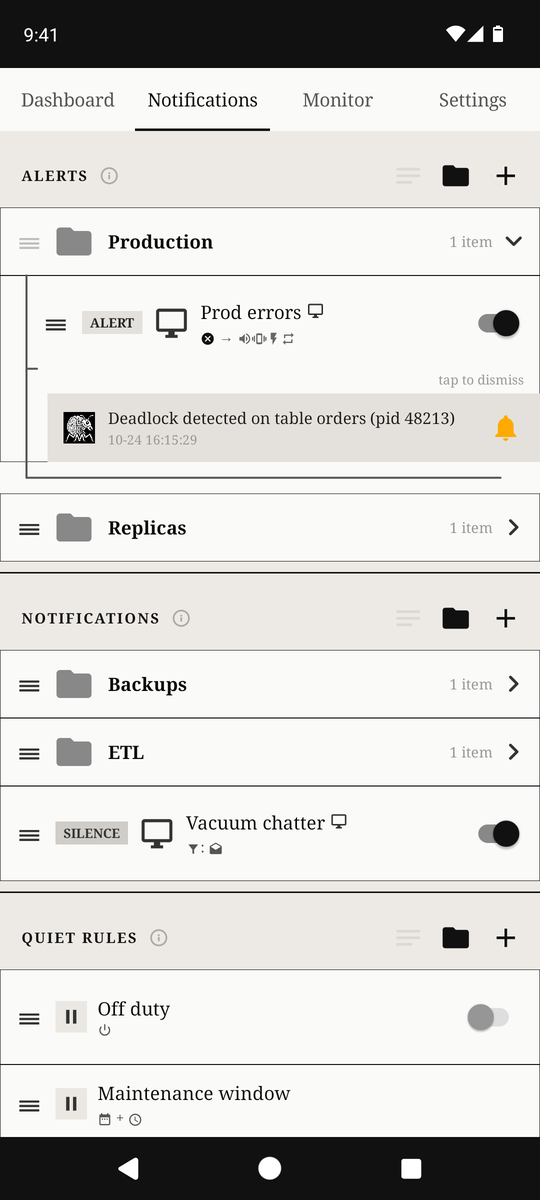
Each section of the Notifications tab has its own folders: Alerts, Notifications, Quiet rules, and Custom actions. A folder belongs to the section where you created it and holds only that section's items.
Creating a folder
Tap the folder icon in a section header. The folder editor has:
| Setting | What it does |
|---|---|
| Folder name | Required. Shown on the folder's row. |
| Folder image | Optional. Tap Choose Image to pick a picture; it appears as the folder's icon. Remove image clears it. |
| Filters | Filters every rule in the folder must also pass (Alerts and Notifications folders only) |
| Assigned quiet rules | Quiet rules that pause everything in the folder (Alerts and Notifications folders only) |
Folders for quiet rules and custom actions are for organizing only, so they don't have filters or quiet rules.
Arranging folders
- Drag a rule or folder inside an expanded folder to move it inside. Folders can be nested inside other folders.
- Tap a folder row to collapse or expand it. Collapsed folders hide their contents.
- An open folder's drag handle is faded and can't be used. Collapse the folder first to move it.
- Folder tree lines on the left show how deep each item sits.
The folder row shows its name, image, the number of items inside, and any filter or pause that applies to it. If a rule inside a collapsed folder starts alerting, the folder and every folder above it opens automatically so you can see the alert.
Folder filters
A folder's filters work like a rule's filter expressions: groups with All or Any, filters that can be reversed, and nested groups. Folder filters use the Message and Source fields with contains, equals and starts with, and folders in the Notifications section also get the level buttons.
A rule in the folder only matches if it passes both its own filters and the folder's. Use Copy and Paste to reuse a folder's filters on another folder.
Folder quiet rules
While any quiet rule assigned to a folder is active, the folder and every folder inside it are paused:
- Notify, Silence, and Nudge rules inside are skipped, as if they were turned off.
- Alerts inside are held and ring once the quiet rules end, just like quiet rules assigned to the alert itself. Quiet rules that use a Cooldown or Alerts count skip the alert instead.
A paused folder is dimmed and shows Paused by quiet rule with the quiet rule's name, and its contents are dimmed too. A quiet rule never silences an alert that's already ringing. See Quiet rules.
Order matters
Rules are checked in list order, and a folder's contents are checked where the folder sits in the list. In the Alerts section, the first active alert in that order decides which sequence plays.
Deleting a folder
Open the folder's editor and tap Delete folder. A folder must be empty first: move or delete its rules and sub-folders, or you'll see Remove all rules from this folder before deleting it.