
Finding your way around
LemmeKnow has four tabs along the top: Dashboard, Notifications, Monitor, and Settings. On any tab except the Dashboard, the Back button takes you to the Dashboard instead of leaving the app.
Working with lists
The same gestures work throughout the app:
- Tap a card or row to expand or collapse its details.
- Long-press a row to open its editor (rules, quiet rules, folders, servers, feeds, and actions).
- Drag the handle on the left of a row to reorder it. An open folder can't be moved; collapse it first.
- Delete from inside the editor, not from the list.
- Tap a folder row to collapse or expand it.
When you come back from creating something, the list scrolls to it and flashes the row so you can spot it.
Info buttons next to section headers open Help topics for that part of the screen.
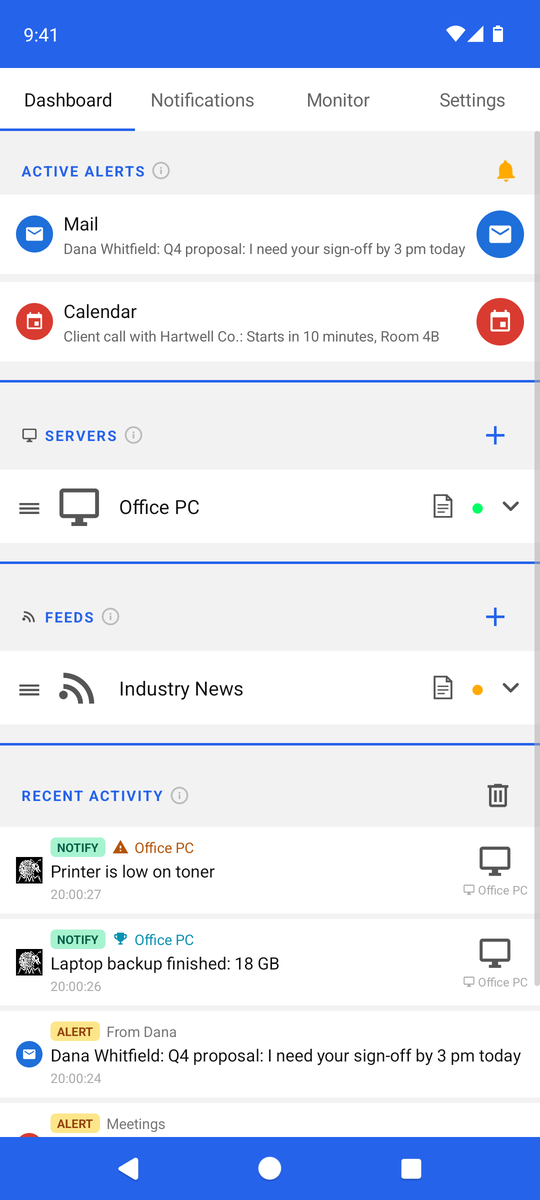
Dashboard
The Dashboard is your overview, in four sections:
- Active Alerts: alerts waiting for you. The bell in the header animates while any are unacknowledged. Tap an alert to jump to it on the Notifications tab.
- Servers: one card per server, with a status dot and tabs for status and sources, plus feeds and plugin tabs on a hub. Servers are a Premium feature. See Connecting to a server.
- Feeds: one card per feed, with recent items and poll status. See Feeds.
- Recent Activity: a log of what your rules did this session, such as notifications sent, nudges fired, alerts dismissed, and action results. Tap the chip on the right of a row to jump to its server or feed.
More detail is in Dashboard.
Notifications
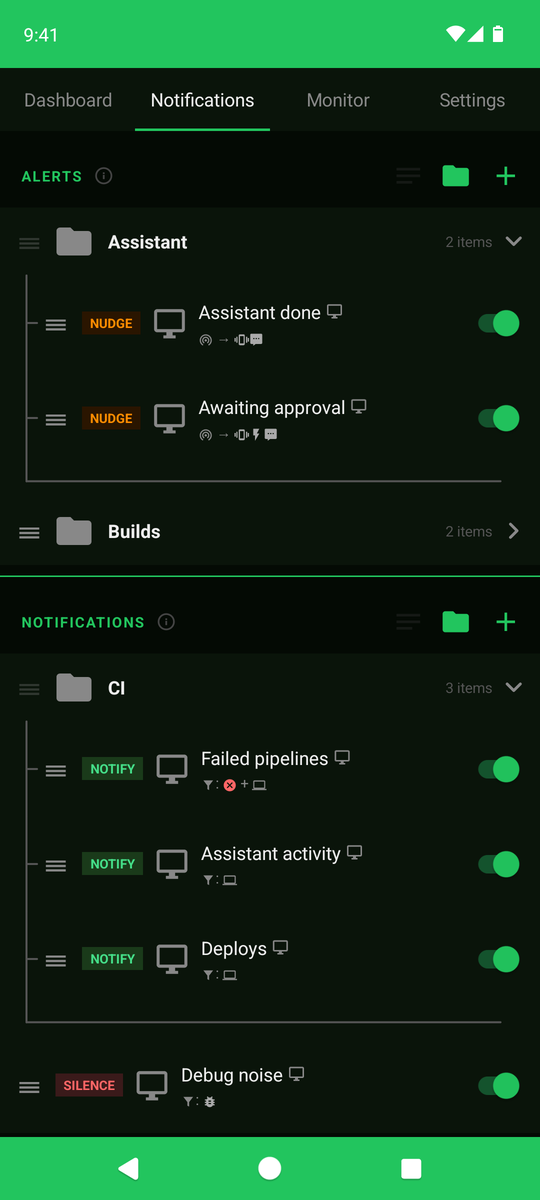
This is where your rules live. It has four sections:
| Section | Contains |
|---|---|
| Alerts | Alert and Nudge rules, with each alert's unacknowledged occurrences listed beneath it |
| Notifications | Notify and Silence rules |
| Quiet rules | Quiet rules you can assign to rules and folders |
| Custom actions | Reusable actions (Premium) |
Each section header has buttons to add an item (+), create a folder, and toggle the detail view (the notes icon), which shows each rule's filter in more detail. The switch on a row turns that rule off temporarily.
A dimmed rule is turned off or paused. A rule paused by a quiet rule shows Paused by quiet rule and the quiet rule's name.
Monitor
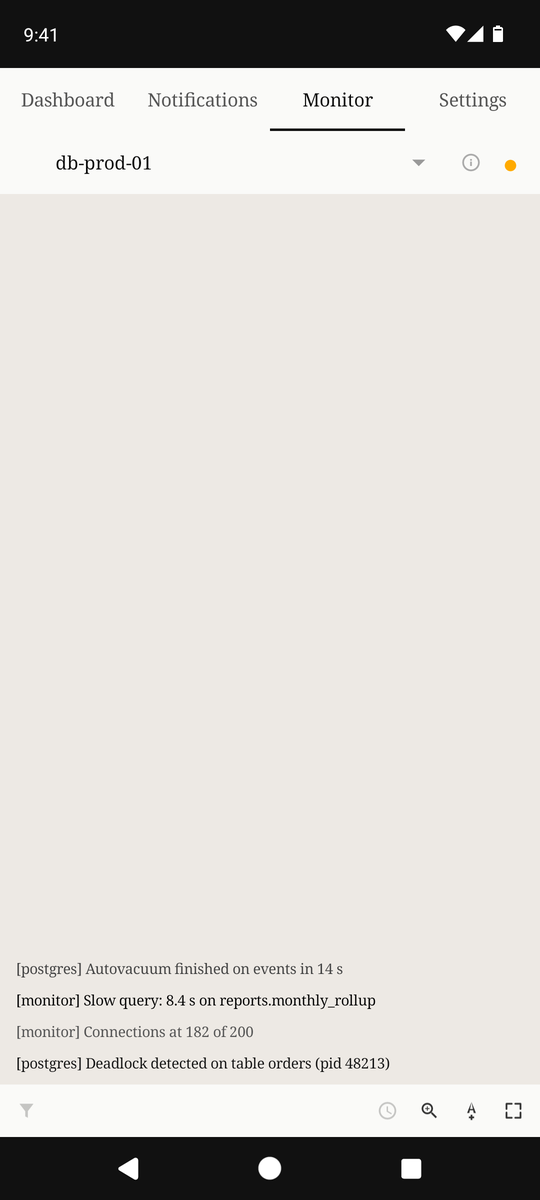
The Monitor shows a live stream of messages and various other items. The selector at the top switches between your servers and feeds. Toolbar buttons filter by level and source, show or hide debug messages and timestamps, change the zoom and text size, and expand the monitor area. You can also pinch to zoom. Long-press a row to copy its text or switch to the expanded view to drag and select multiple rows to copy.
Settings
| Section | What's there |
|---|---|
| Top buttons | Secrets Manager, Appearance & Colors, System Notification Settings |
| Purchase | Upgrade to Premium and Restore purchase (free tier only) |
| Server logs | How many log entries to keep and for how long (Premium) |
| Wearable | Wearable integration, what a long press does on a locked phone, Send Test Alert |
| Accessibility | Hide help buttons, Hide premium features, Flash safety |
| Location | Use geofencing (Play Services) |
| Power saving | Start on boot, Stop service / Start service |
| Backup | Export Config and Import Config |
| Data | Install Plugin Package and Delete plugins (Premium), Clear All Logs |
| About | Version, website, privacy policy, and support contact |
Flash safety is on by default. It blocks the Flash step, limits fast animations, and slows flashing effects, to protect people with photosensitive epilepsy. Turning it off asks you to confirm a warning first. Please be mindful of others in public when configuring your display options!
Export Config saves your servers, feeds, rules, quiet rules, folders, actions, custom themes, and playlists to a file. App settings, images, fonts, and unsaved appearance changes aren't included. Import Config replaces your current configuration with a backup's contents.