
Alerts on your wearable
Once your wearable is set up (see Setting up your wearable), your rules decide what reaches it. This page covers what each kind of rule does on the wearable and the per-rule controls.
What reaches the wearable
| Rule type | On the wearable |
|---|---|
| Alert | A full alert screen that stays until you dismiss it, with vibration following the rule's action sequence. |
| Nudge | The rule's action sequence plays once as vibration. No screen opens. |
| Notify | The regular phone notification, mirrored by Wear OS the same way it mirrors notifications from other apps. OS notifications must be enabled for these to display. |
| Silence | Nothing. |
See Alerts, Nudges and Notify and Silence for how each rule type behaves on the phone.
The alert screen
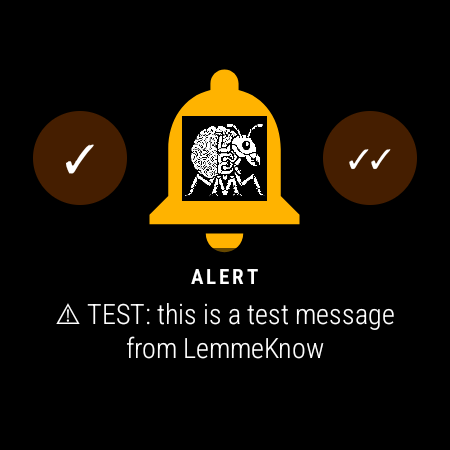
When an alert rule fires, the wearable wakes and shows the alert screen even if it is locked. It shows:
- the rule's name
- a swinging bell, with the rule's custom image or the source app's icon inside it when there is one
- Dismiss ✓ and Dismiss All ✓✓ buttons
- your palette colors
The wearable vibrates in step with the rule's action sequence. Vibrate and Morse code steps buzz, delay steps pause, toast steps show their text, and wake steps turn the wearable's screen on. Steps a wearable can't perform, such as sounds or the camera flash, play as a short vibration instead.
Dismissing
Dismiss ✓ acknowledges the oldest pending alert. Dismiss All ✓✓ acknowledges every pending alert. Either one has exactly the same effect as dismissing on the phone's Notifications tab. When no alerts are left pending, the alert screen closes on every wearable.
The phone's alert notification also carries Dismiss and Dismiss All buttons, so you can clear an alert from the notification shade and the wearable follows.
Long press the bell
Long press the bell on the alert screen to open what caused the alert on your phone.
| Phone state | What happens |
|---|---|
| Unlocked | LemmeKnow opens the app whose notification triggered the alert. If that works, the alert is dismissed. If the app can't be opened, the Notifications tab opens instead. |
| Locked, Wake selected | The phone screen turns on so you can see the alert on the lock screen. Nothing is unlocked or dismissed. |
| Locked, Unlock selected | The phone asks you to unlock, then opens the source app and dismisses the alert on success. If the app can't be found, the Notifications tab opens. Cancelling the unlock does nothing. |
For alerts that come from LemmeKnow itself rather than another app (for example a server or feed alert), a long press opens the Notifications tab. On a test alert, a long press opens the Settings tab.
Choose Wake or Unlock under Long press on phone lock in the Wearable section of Settings.
Muting the wearable per rule
Alert and nudge rules have a Mute row in the rule editor with three choices:
| Mute | Effect |
|---|---|
| None | The rule plays on the phone and on the wearable. |
| Device | The phone's effects are silenced. The wearable still gets the alert or nudge. |
| Wearable | Nothing is sent to the wearable. The phone plays as usual. |
The steps of the sequence still run either way. Mute only silences the chosen output. Notify rules offer None and Device only. To keep mirrored notifications off a particular wearable, turn OS notifications off in LemmeKnow on that wearable.
Auto-dismiss
Alert rules can dismiss themselves after a delay. In the rule editor, set Auto-dismiss after to a number of seconds (blank or 0 means never) and pick a Mode:
| Mode | Effect |
|---|---|
| Full | After the delay the alert is acknowledged on the phone, as if you had dismissed it, and the wearable clears too. The Dashboard history notes that it was auto-dismissed. |
| Wearable | After the delay only the wearable's alert screen closes. The alert stays pending on the phone until you acknowledge it there. |
After a wearable restart
If an alert is still active when the wearable restarts, it shows the alert again once it is back up.