
Dashboard
The Dashboard is the first tab in LemmeKnow and the place to see everything at a glance. It's one scrolling list with four sections: Active Alerts, Servers, Feeds, and Recent Activity. Pressing Back on any other tab brings you here.
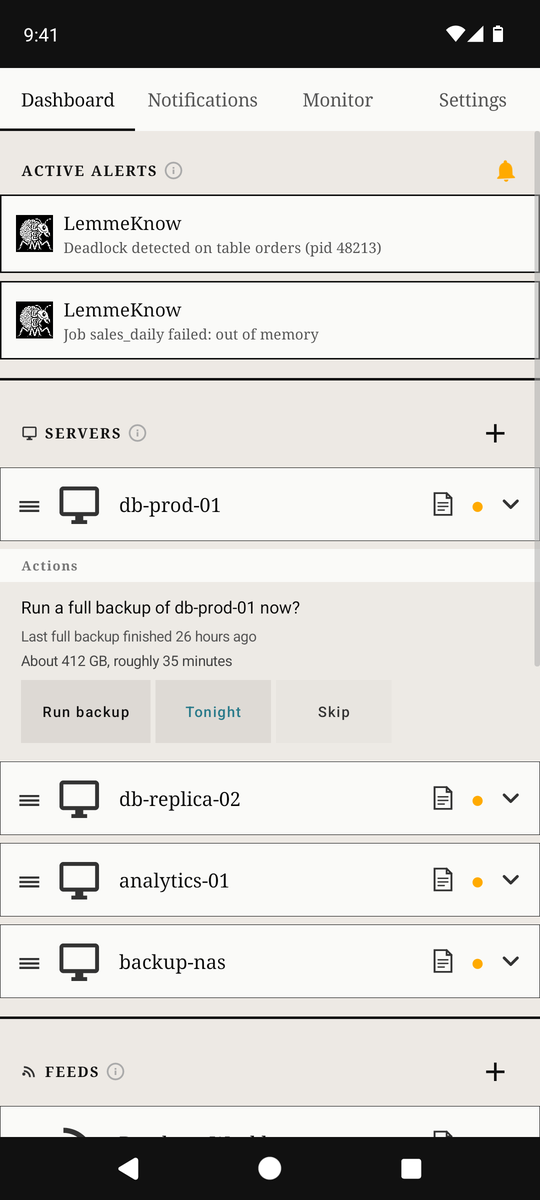
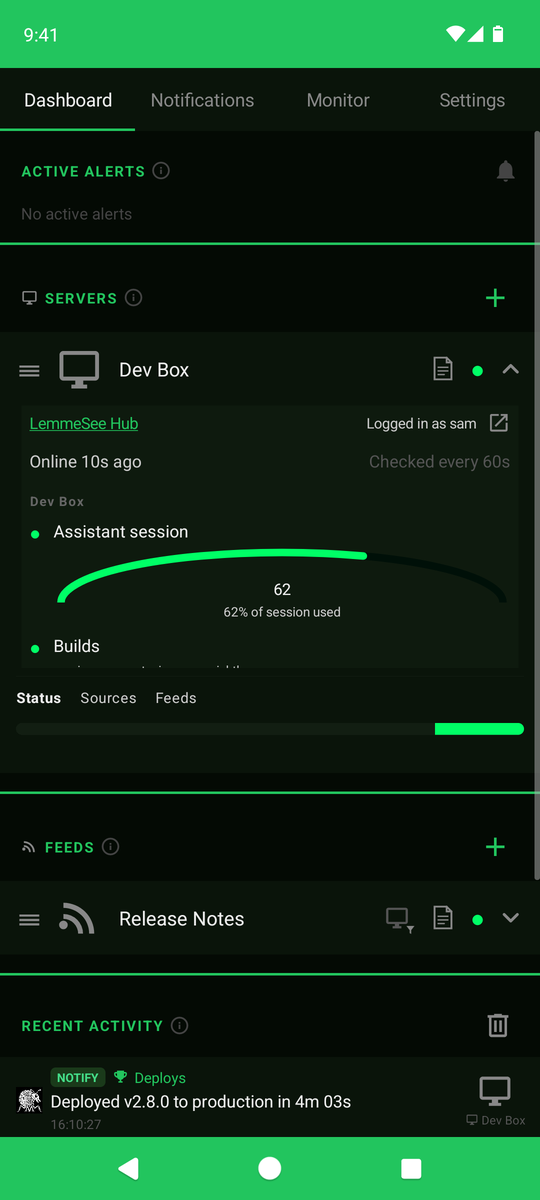
Throughout the app, tap a row to expand or collapse it, long-press a row to open its editor, and drag the handle on the left edge to reorder. Reordering is only cosmetic. The info icons next to section headers open the in-app Help for that section (you can hide them in Settings under Hide help buttons).
Active Alerts
Alert rules that are waiting for you to acknowledge them appear at the top. Each row shows the rule name, the latest message and the rule's icon. Tap a row to jump to that alert on the Notifications tab. The bell in the section header animates while anything is waiting; tap it to open the Notifications tab. Acknowledged alerts move to Recent Activity. See Alerts.
Servers
Connecting your own servers and LemmeSee hubs is a Premium feature. Each server row shows a status dot, the server name and a monitor button that opens the Monitor tab on that server's log. A number on the monitor button counts unread messages.
Feeds
RSS and Atom feeds you follow, plus feeds you've subscribed to from a hub. Each row shows the feed's icon and name, a status dot and a monitor button with an unread count. Expand a feed to see its Items (recent entries; tap one to open it in the Monitor tab) and its Status (last poll, interval, next poll, and stored item count). See Feeds.
Recent Activity
A running list of things LemmeKnow did in this session: notifications sent, nudges fired, alerts dismissed, and actions run, each with a badge such as ALERT, NOTIFY, NUDGE, or SYS. The icon on the left shows which app triggered it. When an entry came from a server or feed, a chip on the right takes you to that card. Tap an entry that came from a log message or feed item to open it in the Monitor tab; tap any other entry to read its full text.
Recent Activity lives in memory only, so it's cleared when the app restarts. The trash icon in the header clears it by hand.
On the Free tier
Free users see a banner at the top explaining what Premium adds. Close it with the X and it stays away until the next launch, or turn on Hide premium features in Settings to hide it and every Premium section. See Free and Premium.