
Video streams
LemmeSee hubs can provide video streams directly to LemmeKnow as a Premium Feature. If your LemmeSee hub has streams available, you can view them live from the Monitor tab, either one camera at a time or as a tiled group. To set up streams on the hub, see Streams in the hub documentation.
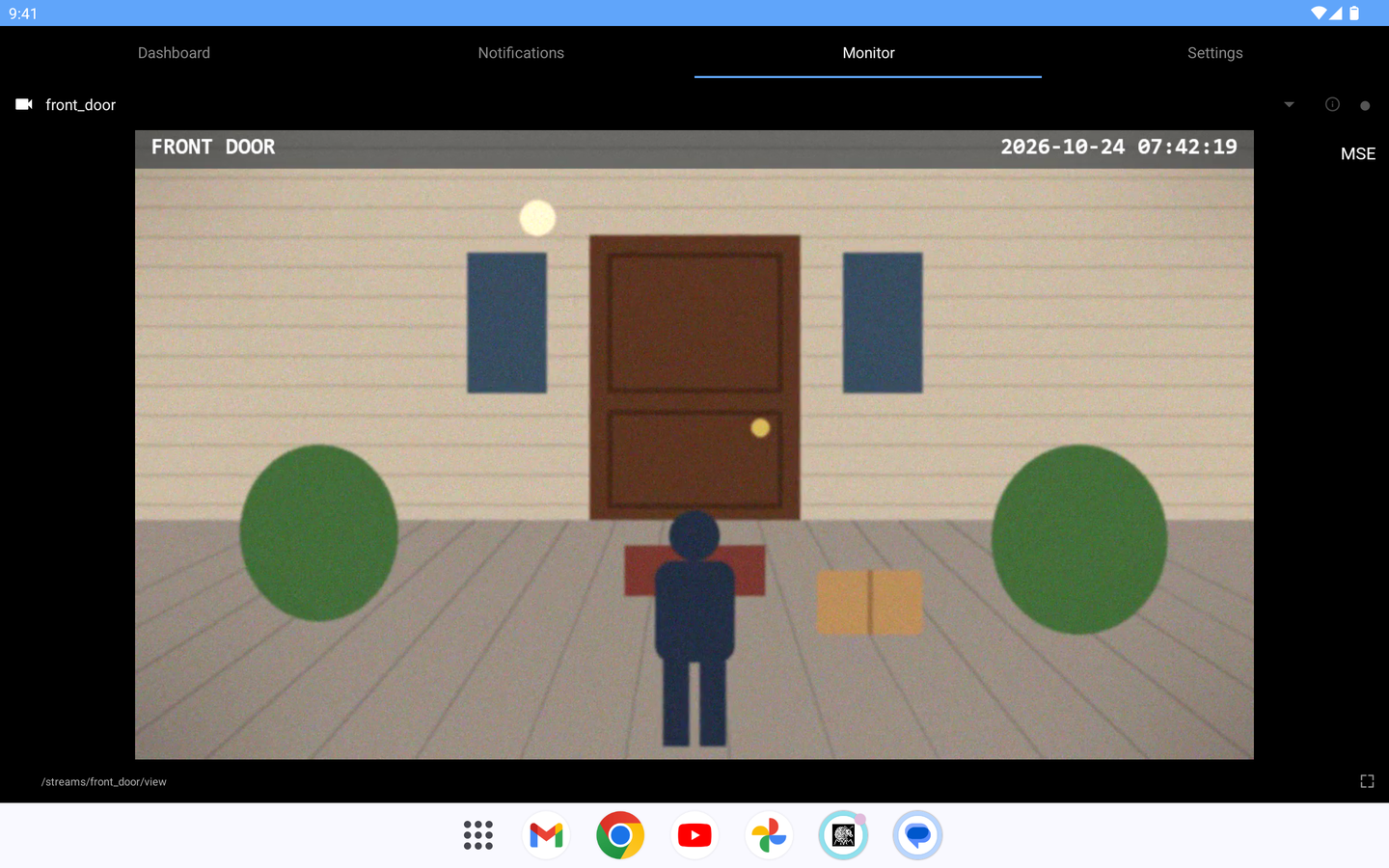
Finding streams
Open the Monitor tab and tap the channel list at the top. Streams appear under their hub server, below that server's feeds:
- a single stream has a camera icon, for example "Front door camera"
- a stream group has a double camera icon and shows all its members as tiles in one view, for example "Outside cameras"
The hub can give a stream or group its own icon and a short description, which appears as a second line under the name. Streams appear and update on their own as the hub's list changes.
Your account only sees the streams the hub allows it to see. A group only shows the members you can see, and a group with none of them visible doesn't appear at all.
Watching
Pick a stream to start playing it in the Monitor tab. While a stream is showing:
- tap the expand button to go fullscreen
- pinch to zoom and drag to pan
- tap the same button again, or use Back, to leave fullscreen
- rotate the phone freely; playback carries on
A stream stops when you switch to another channel, so the camera isn't kept busy while you aren't watching. Long press the channel list to reload the current view.
Privacy and connection
Your phone never connects to your cameras directly. All video goes through your hub, signed in with your account the same way as everything else the app fetches from the hub, so streams work wherever your phone can reach the hub. See Connecting to a LemmeSee hub and Remote access.