
Approvals
LemmeSee hubs can send approval requests to a LemmeKnow app user as a Premium feature. The server can ask you before it does something in which case the originating script on the hub pauses, sends a request to your phone, and carries on with whatever you answer. A request can ask you to pick an option, type some text or tick items on a checklist. Approval requests cannot be sent by a standalone LemmeKnow Server. To send requests from your hub, see Approvals in the hub documentation.
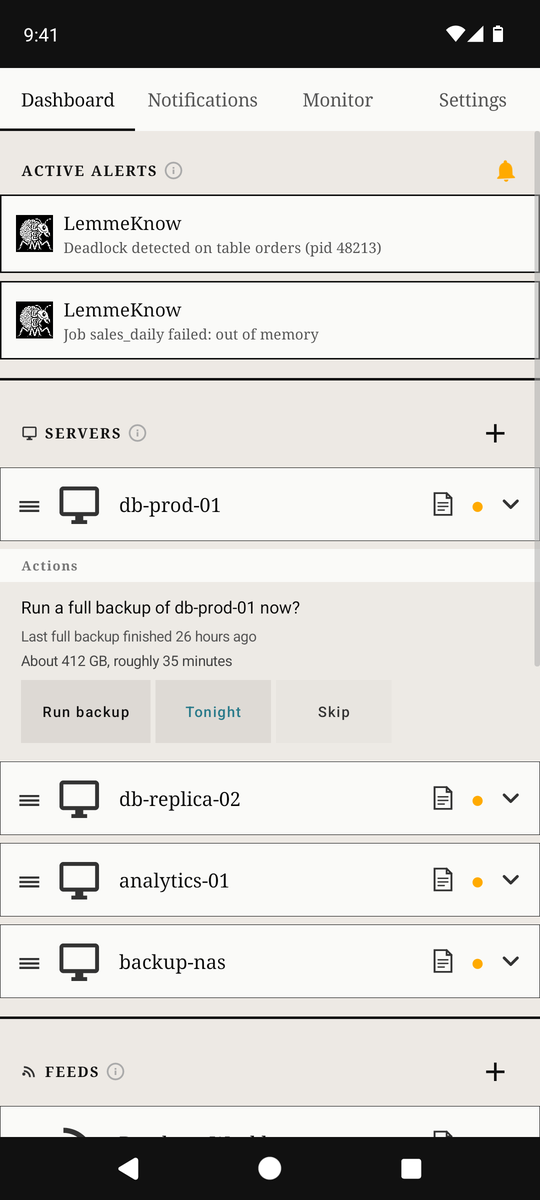
Where requests appear
Pending requests appear on the Dashboard, directly under the hub that sent them. Each card shows:
- the request's description
- any extra content the hub attached, such as text, links, or images
- a row of buttons
When the request doesn't specify its own buttons, the card offers Approve and Deny. Requests can also supply their own buttons, colored green for a positive choice, red for a negative one, or neutral.
Responding
Tap a button to respond. LemmeKnow asks you to confirm the choice first. If that choice comes with inputs, a dialog opens instead:
- text inputs give you a field to type in
- checklists give you a list of items to tick
Tap OK to send your response. Your choice and anything you entered go straight back to the hub, and the card disappears. Cancel to go back without answering.
Time limits
Every request has a time limit set by the hub, two minutes unless it says otherwise. When the time runs out without a response, the request expires: its card and any notification for it disappear, and the hub treats it as unanswered.
Getting notified
A request doesn't post a notification by itself. To be notified, create a notify rule for LemmeKnow scoped to the hub's server (or Any Server) and add the Request filter. The rule then matches every incoming request, and the notification reads "[server name] Action required" with the request's description. For requests with the default choices, the notification has Deny and Approve buttons so you can respond from the notification shade. Tapping the notification opens the Dashboard.
These notifications use the Pending Actions notification channel, which you can adjust in Android's notification settings.
Alert and nudge rules can react too. Every request fires the built-in Action requested ping, so a rule on that ping can vibrate, raise an alert or run a custom action. In those actions, {{trigger.payload}} holds the full request, including its id and options. See Nudges and Token Builder.
Turning requests off
Each hub has an Accept Requests setting in its server editor:
| Setting | Effect |
|---|---|
| Yes | Requests from this hub are accepted. The default. |
| Text only | Requests are accepted, but images are not shown. |
| No | Requests from this hub are ignored. |
Buttons on feed items
Hub feed items can also carry their own buttons, shown on the item in the Monitor tab. Tapping one sends that choice to the hub, and LemmeKnow shows "Action sent" or "Action failed". A button with a time limit counts down and disables itself when time runs out. See Feeds.