
Feeds
A feed is a source of items that LemmeKnow checks for you. Items from feeds can trigger your rules just like notifications from apps or messages from servers. There are three kinds:
| Kind | Where it comes from | Tier |
|---|---|---|
| RSS and Atom feeds | Any public RSS or Atom address. | Free |
| Hub feeds | Feeds published by a LemmeSee hub you are connected to. | Premium |
| Filter feeds | An RSS or Atom address that your hub fetches and runs through a chain of filters before passing it on. | Premium |
RSS and Atom feeds have their own page: RSS and Atom feeds. This page covers what all feeds share and the two hub-based kinds.
Feeds on the Dashboard
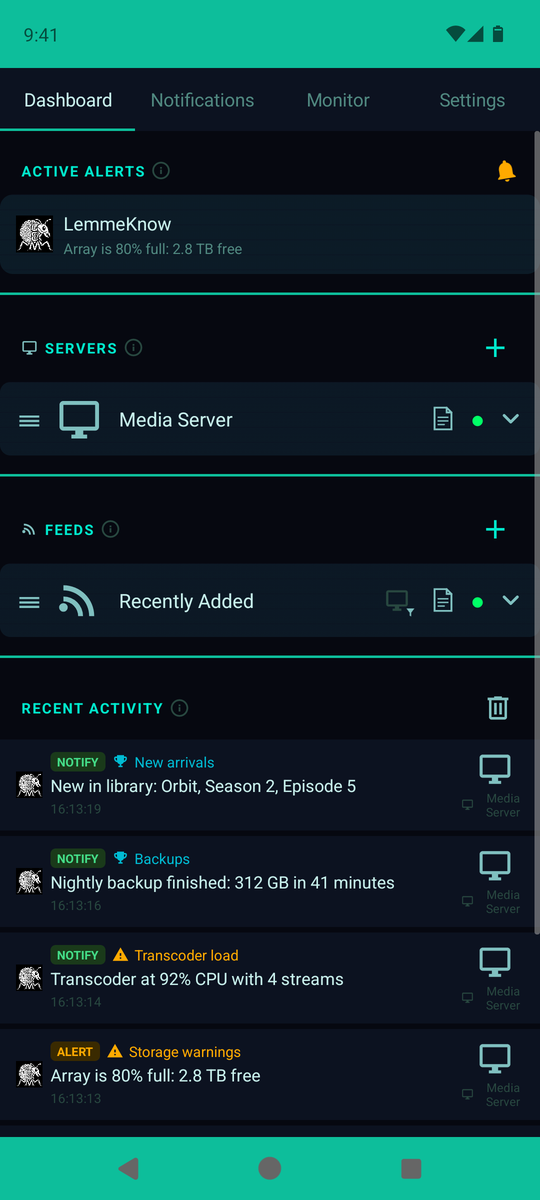
The Feeds section of the Dashboard lists your RSS, Atom and filter feeds. Each row shows the feed's icon, its name, a status dot and a monitor button:
- The dot is green when the last check succeeded, red when it failed, and grey when the feed hasn't been checked yet.
- The monitor button opens the feed on the Monitor tab. When unread tracking is on, it shows how many items you haven't seen.
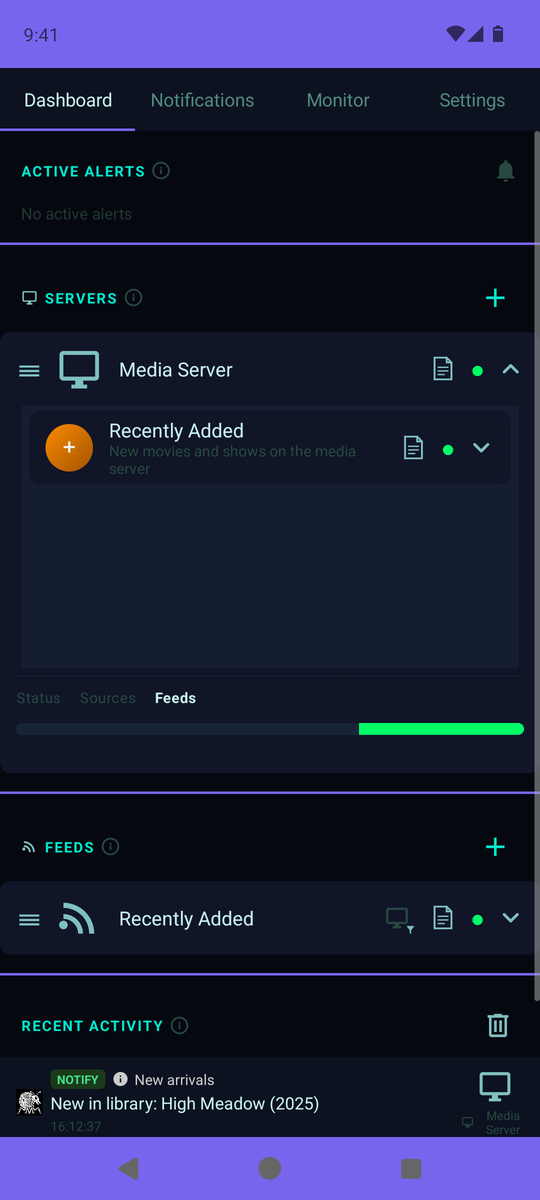
Tap a row to expand it. Items lists recent entries with their age, and a media icon when an item has an image; tap one to jump to it on the Monitor tab. Status shows when the feed was last checked, how often it is checked, when the next check is due and how many items are stored. Long press a row to open the feed editor, and drag the handle to reorder.
On the Monitor tab, pick a feed from the channel list at the top to read its items. Feeds can also appear on your home screen in the Feed widget; see Widgets.
Hub feeds
Hub feeds are published by a LemmeSee hub. Expand the hub's row on the Dashboard and open its Feeds tab to see what the hub offers you.
- Tap the monitor icon on any hub feed to read it without subscribing.
- Long press an unsubscribed feed to subscribe to it.
- Long press a subscribed feed to edit it or unsubscribe.
Subscribing makes the feed a channel on the Monitor tab (listed under its server) and lets you pick it in rules. Fresh items are pushed to your phone as soon as the hub has them; LemmeKnow also checks the feed on a slower schedule as a fallback.
When you subscribe or import a configuration, the first batch of items arrives quietly so you aren't flooded with notifications for items that already existed. After that, each item notifies normally.
The hub can update an item in place, for example when the status of something it tracks changes. The updated item replaces the old one without notifying again. The hub can also withdraw items, which removes them from your phone.
Editing a hub feed
The editor for a subscribed hub feed differs from an RSS feed:
| Field | Description |
|---|---|
| Display Name | Set by the hub. It can't be renamed. |
| Show as Log Source | Optional source name. When set, the feed's items appear inline in the server's message stream on the Monitor tab under that source name instead of as a separate channel, and rules scoped to the server or that source see them. Unread display is then inherited from the server. |
| Fallback poll every (minutes) | How often to check the feed in case a push is missed. At least 15 minutes. |
| Keyword Filter | Optional, case-insensitive. Items whose title or body don't contain it are dropped before any rule sees them. |
| Monitoring and Images | The same Auto-scroll, Unread display, Show in monitor, and Include in notifications options as servers. |
Repoll Feed fetches the feed right away. Unsubscribe removes it and its stored items from your phone; the feed stays on the hub.
Item content
Hub feed items can carry more than a title: a severity level, formatted text, links, images, and a body you can expand with the chevron on the row. Some items include buttons. Tapping one sends your choice back to the hub, and LemmeKnow shows "Action sent" or "Action failed". A button with a time limit shows a countdown and disables itself when time runs out. See Approvals for requests that ask for your input.
Some hub feeds are dynamic live lists that the hub keeps current, such as a list of things currently open on the hub. Their items are held only while the app is running and refill on the next check after a restart, and they don't add to unread counts, the Dashboard item list or widgets.
A plugin can present a hub feed as a page instead of a plain list acting as a basic webapp. On those channels a raw view button switches back to the underlying items. See Plugins on your phone.
Filter feeds
A filter feed takes any RSS or Atom address and has your hub process it before it reaches your phone. Filters can drop items you don't care about, raise the level of items that match keywords, pull in thumbnails or summaries, and more, depending on which filters your hub offers. See Filters for the hub side.
To create one, tap + on the Dashboard's Feeds header. With Premium and at least one server, the editor shows a LemmeSee filters section:
- Enter the RSS / Atom URL of the source feed.
- Pick a server and choose a filter. Each filter shows a short description.
- + Add Filter adds another filter for the same server. Filters run in order, each working on the previous one's output; drag them to reorder.
- + Add Another Server adds a step that runs on a different server.
Filter feeds appear in the Feeds section alongside your RSS feeds and behave the same way. If you change the chain of a filter feed, saving re-fetches the feed with the updated chain.
Feeds in rules
Every feed can be picked as the channel of a rule, and Any Feed matches all of them. Items from feeds never appear in a server's message stream unless you set Show as Log Source on a hub feed. See Notification rules.