
Connecting to a LemmeSee hub
LemmeKnow can connect to an advanced server called the LemmeSee hub as a Premium feature. The hub is a desktop application that runs the standard LemmeKnow Server as a task while extending the features available far beyond what the LemmeKnow app can do on its own. On top of the logs and heartbeat every server sends, a hub can publish feeds, filter chains, video streams, approval requests, states, custom pings and plugins, all accessible securely from your phone.
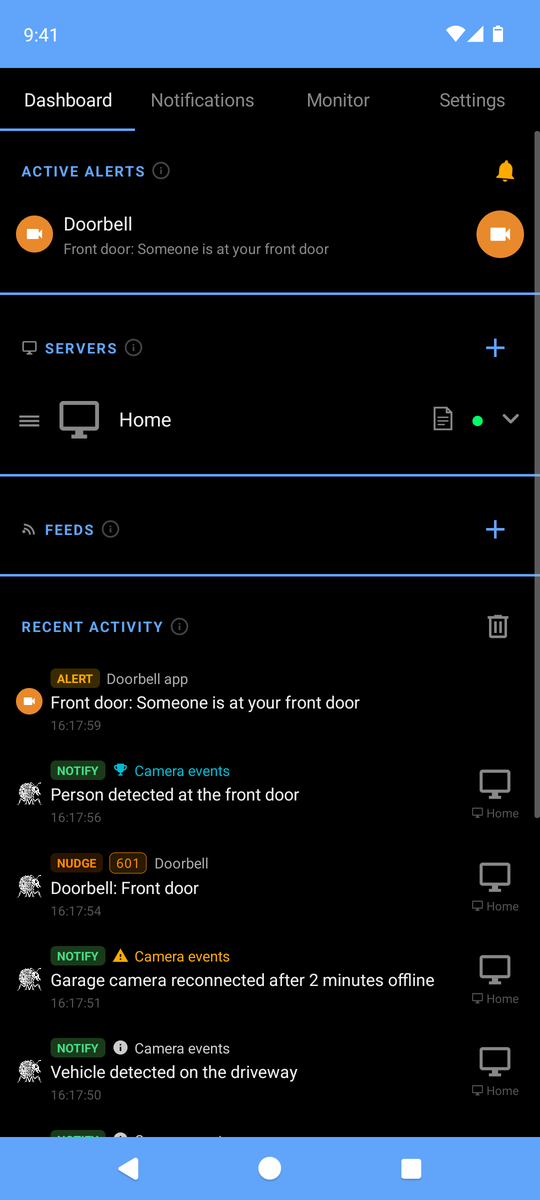
This page covers the phone side. For installing and running a hub, see the LemmeSee Hub documentation.
Get an account
Hubs that require sign-in give each person their own account. Get a username and access key from the hub. See Users and Invites for the admin side of what is available to you.
What you see on your phone depends on what your account is granted access to. The hub decides which logs, feeds, streams, and plugins reach you, so two people connected to the same hub can see different things.
Add the hub to LemmeKnow
Add a LemmeSee hub like any other server (see Connecting to a server):
- Address: the hub's broker address as
host:port, for example192.168.1.10:1883. - Username and Access Key: your account details.
- Use TLS encryption: switched on automatically, since an access key always travels encrypted.
Tap Save & Connect. Once connected, the hub's PC reports it's preferred web address, which appears read only as Hub URL in the server editor along with "Logged in as" and your username. If you are reaching the hub from outside your home network, see Remote access.
How you know it's a LemmeSee hub
A LemmeSee hub gets the LemmeKnow icon as a badge on its Dashboard row. Expand the row to see the Status tab starts with a LemmeSee Hub label (servers without a hub show LemmeKnow Standalone instead), followed by "Logged in as" and your username, the hub's uptime, and a details section listing plugin states and ping codes with labels.
If your account has access to the hub's web UI:
- tap the LemmeSee Hub label to open the hub's web UI inside the Monitor tab, or
- tap the open icon next to it to open the web UI in your browser with a temporary signin active.
What a hub adds
| Feature | Where you find it |
|---|---|
| Hub feeds and filter feeds | The server's Feeds tab on the Dashboard and the Feeds section. See Feeds. |
| Video streams | The Monitor tab's channel list, under the server. See Video streams. |
| Approval requests | Cards under the server on the Dashboard whenever one is pending. See Approvals. |
| States | Shown on the server's Status tab, displaying a green or yellow status dot based on its alarm state, and usable in conditions for rules and quiet rules. |
| Pings | Codes and their corresponding names the hub can send, available in the rule editor's ping conditions for nudges and alerts. See Pings. |
| Plugins | Extra Dashboard tabs, Monitor pages, generated rules, and a lot more. See Plugins on your phone. |
| Custom actions | Advanced actions the hub supports such as webhooks that can be added to nudge and alert steps. See Custom actions. |
Crash reports
Send crash reports to hub in the server editor lets LemmeKnow send a short report to the hub whenever the app crashes, so the hub admin can see it in the hub's Crash Reports feed. The switch is off when you add a server; turn it on for each hub you want to receive reports. This should only be used when attempting to debug behavior related to the hub its attached to or when filing a bug report for the app when you are the hub owner.
The report holds your device model, the error and its stack trace but requires a valid login to work. Sending is best effort: the app gives it about three seconds while it closes, and if the hub can't be reached, the report is lost. See Crash reports for the hub side.
If the sign-in fails
If the username or access key is wrong, the server's status stays red. Check both fields in the server editor, and ask your admin whether the key has been rotated. If the hub's certificate key changes, LemmeKnow asks you to confirm it before reconnecting; see Trusting the server's certificate.